TV screensaver art: how to show paintings instead of a black screen
Updated September 17, 2026
A TV screen saver (or screensaver – both spellings are searched) is the easiest way to get an art-frame effect without buying a Frame TV: when the TV or streaming box goes idle, it shows a painting instead of a black screen or a logo. Every major platform supports it, and the good ones let you use your own images. Here is where the setting lives on each, and which images work.
Which images to use
Screensaver art has to survive default TV brightness and a glossy panel, so:
- 16:9 and at least 1920 × 1080 – 3840 × 2160 on a 4K set. Other ratios get letterboxed or pan-and-zoomed.
- Painterly, muted, matte-looking images survive far better than bright photographs.
- No text – lettering is what makes a screensaver look like a screensaver.
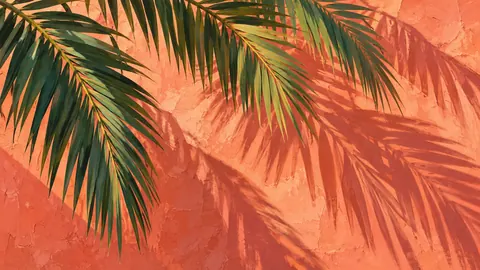
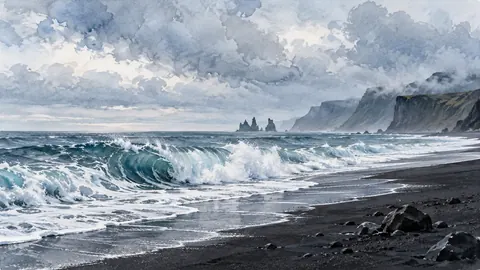
Our free Frame TV art set (36 designs, 1920 × 1080) is a ready-made screensaver pack; the full collection is 4K.
Fire TV / Fire TV Stick
- Upload the art to Amazon Photos (app or web; free with Prime, 5 GB otherwise) into an album.
- On the Fire TV: Settings → Display & Sounds → Screensaver → choose the album.
- Set Slide Style: Dissolve, Slide Speed: Slow, Pan & Zoom: Off, Start time: 5 min.
Apple TV
- Put the art in a shared album in Photos on your iPhone/Mac (or any album synced to iCloud).
- On Apple TV: Settings → Screen Saver → Type → Photos → pick the album. Set Show After 2 min and transition to Dissolve.
- Stop the TV going black: Settings → General → Sleep After → Never while you want the art up (and see Apple TV notes on the Art Mode music/Apple TV page if you own a Frame).
Google TV / Chromecast with Google TV / Sony Bravia
- Upload to a Google Photos album.
- Settings → System → Ambient mode → Google Photos → choose the album; turn off Personal photo curation and Show artwork/weather if you want only your images.
- Ambient mode starts after the idle timeout; set it short.
Roku (and Roku TVs)
Roku’s built-in screensavers (Settings → Theme → Screensaver) are Roku’s own images. For your art, use a photo channel – Photo View, PhotoView, or the Roku mobile app’s Play on Roku → Photos – or a USB slideshow through Roku Media Player. Set Screensaver wait time to 1 minute so it kicks in quickly.
Samsung TVs
- The Frame: Art Mode is the screensaver. Art Mode settings → Slideshow → Favourites or My Collection, choose interval. Your own images upload via SmartThings (upload guide).
- Other Samsung TVs: Ambient Mode (2018–2023) or Ambient/Art (2024+) offers décor, weather and – on many models – My Album photos uploaded through SmartThings. Otherwise a USB slideshow.
LG TVs
LG’s screensaver shows LG’s own images. For your art, use the Gallery app with USB or network files and start a slideshow, or a Fire TV/Apple TV/Chromecast connected to the LG with its screensaver set as above.
Keeping the screensaver on
Two settings fight you: the TV’s auto power-off (usually 4 hours without input – disable it under Settings → General/Eco/Power), and the streaming device’s own sleep timer (set to Never, or as long as it allows). If the TV still sleeps, it may be watching HDMI-CEC signals from the device; turn CEC off on the TV (Samsung: Anynet+; LG: Simplink; Sony: Bravia Sync).
A painting for the TV screen, not a photo
The best TV images for a screensaver are paintings, not photographs – screen art for a TV that is glossy and bright looks like a screensaver, while a painting for the TV screen with a muted palette reads as art even at TV brightness. If you want a TV picture frame cover effect (the screen looking like a framed print), add a third-party frame and use the painterly sets.
Wallpaper vs screensaver
“TV wallpaper” usually means the same thing – a static art image shown when idle. Some Samsung and LG models also offer a wallpaper that mimics the wall behind the TV (photograph your wall, upload it), which makes the TV disappear rather than show art. Art looks better; the wall trick is worth trying in a very plain room.
For the full brand-by-brand rundown, including USB on every TV, see art for any TV.
Frequently asked questions
How do I put art as my TV screensaver?
On a streaming device, point the screensaver at a photo album (Fire TV → Amazon Photos, Apple TV → Photos shared album, Google TV → Google Photos album, Roku → a photo channel). On a smart TV, use its ambient/gallery mode or a USB slideshow. Upload the art to that album first.
Is there free art for a TV screensaver?
Yes – our free Frame TV art page has 36 designs at 1920 × 1080 you can download and use on any TV, no sign-up.
Does a screensaver protect the TV?
On LCD/QLED there is nothing to protect – still images do no harm. On OLED a moving or rotating screensaver reduces the chance of image retention, so use a slideshow rather than one image.
Can I set a screensaver on a Samsung Frame TV?
The Frame's Art Mode is the screensaver – it replaces the black standby screen with art. Set a slideshow of Favourites or My Collection in Art Mode settings to rotate pieces.